![Produce8 logo - Colour white (L)@2x (1).png]](https://kb.produce8.com/hs-fs/hubfs/Produce8%20logo%20-%20Colour%20white%20(L)@2x%20(1).png?width=100&height=18&name=Produce8%20logo%20-%20Colour%20white%20(L)@2x%20(1).png)
Before You Begin
Make sure you have:
- The latest Produce8 Desktop Agent PKG
- Your Produce8 Account ID
- Admin access to JAMF Pro
- Any required antivirus/endpoint protection exclusions in place
→ See: Antivirus & Endpoint Protection Whitelisting Guide
Deploying the Produce8 Desktop Agent
1. Download the Agent Installer
Download the latest MacOS Agent PKG from:
📎 Download Links
2. Upload the PKG to JAMF
- In JAMF Pro, go to:
Settings → Computer Management → Packages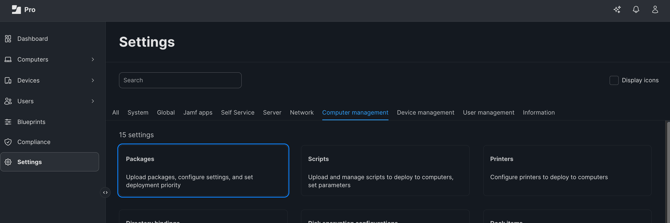
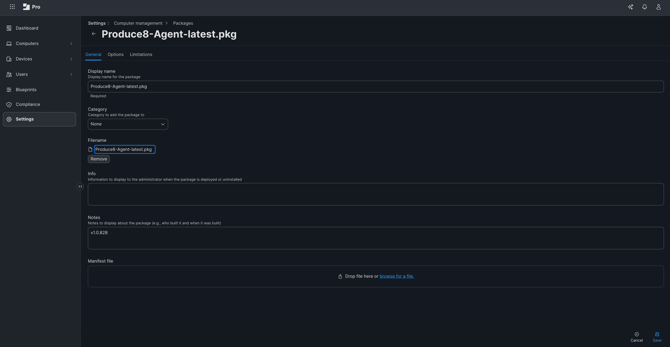
- Click New, and upload the PKG under the Filename section.
The display name should autofill; if not, enter one manually.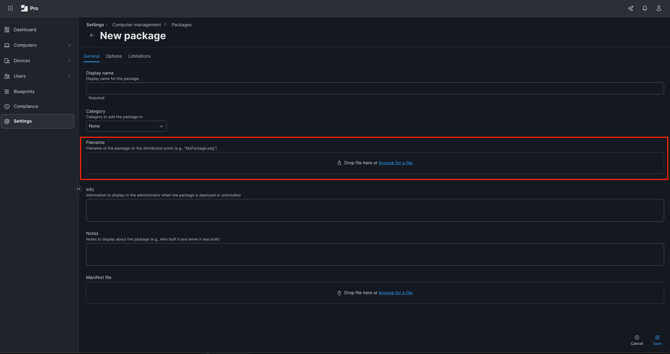
3. Create a Script to Generate the Account Properties File
- Go to Settings → Computer Management → Scripts
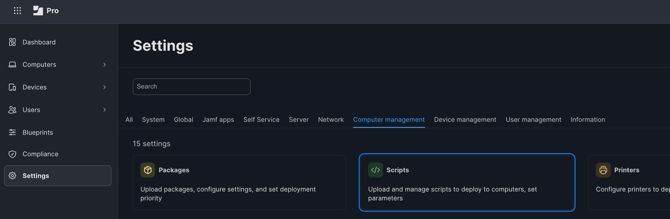
- Click New and give your script a display name
Example: [PROD] Create Account Props File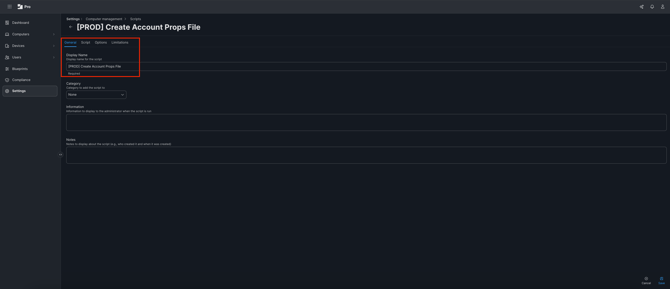
#!/bin/bash

ACCOUNT_ID=ACCOUNT_ID_HERE
CONFIG_FILE_DIR="/Users/Shared/Produce8-Agent"

mkdir $CONFIG_FILE_DIR
echo "account.accountId=$ACCOUNT_ID" > "$CONFIG_FILE_DIR/account.properties" - Go to the Script tab
- Set Mode to: Shell/Bash
- Paste the following script (replace ACCOUNT_ID_HERE with your real ID):
- Click Save
4. Create a Deployment Policy
- Navigate to: Computers → Policies
- Click New and give the policy a name
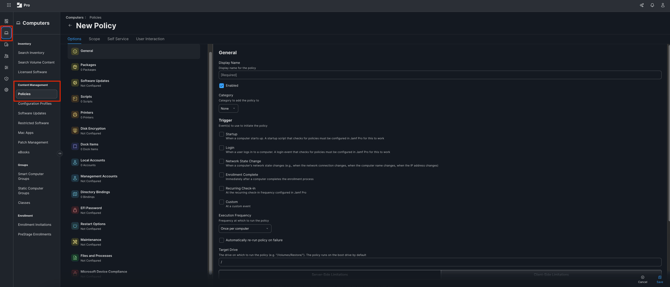
- Under Packages, click Configure and select the PKG you uploaded
- Under Scripts, click Configure and select the script you created
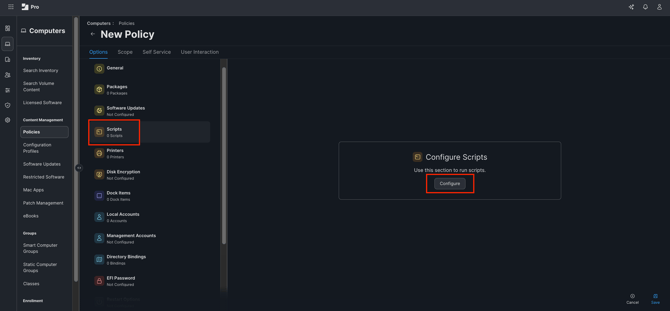
- In the Scope tab, add the target devices
- Click Save
The policy will run automatically based on your configured triggers or immediately if run manually.
Deploying the Produce8 Desktop App (Optional)
If you also wish to deploy the optional Desktop App:- Download the Desktop App PKG
- Upload it as a Package in JAMF
- Create a policy with the PKG assigned
(No script required for the Desktop App)
Next Steps
Once deployed:
- The Agent will begin collecting device activity
- Anonymous User profiles will appear under Account Health → Anonymous Users
- Users may optionally claim their profiles to become Known Users
If you need help validating installation:
→ General Troubleshooting: Verifying Agent and Desktop App Installation