![Produce8 logo - Colour white (L)@2x (1).png]](https://kb.produce8.com/hs-fs/hubfs/Produce8%20logo%20-%20Colour%20white%20(L)@2x%20(1).png?width=100&height=18&name=Produce8%20logo%20-%20Colour%20white%20(L)@2x%20(1).png)
These steps must be completed before deploying the Agent if SentinelOne is preventing installation.
Produce8 Agent
Set Up Exceptions
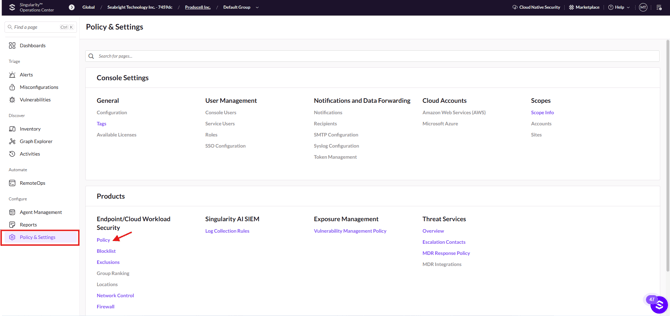
- In SentinelOne, navigate to Policy & Settings → Policy.
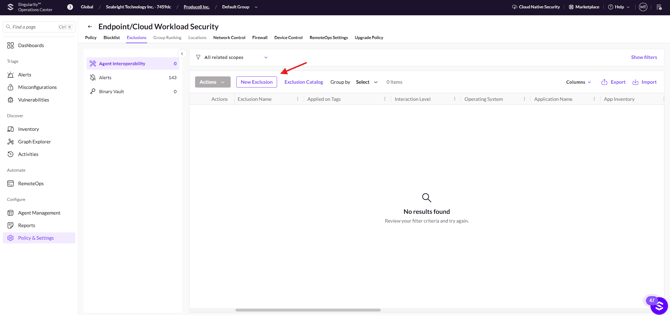
- Go to the Exclusions tab and click New Exclusion.
- Fill out the form:
- Exclusion Type: Agent Interoperability
- Exclusion Name: Produce8 Agent
- Operating System: Windows
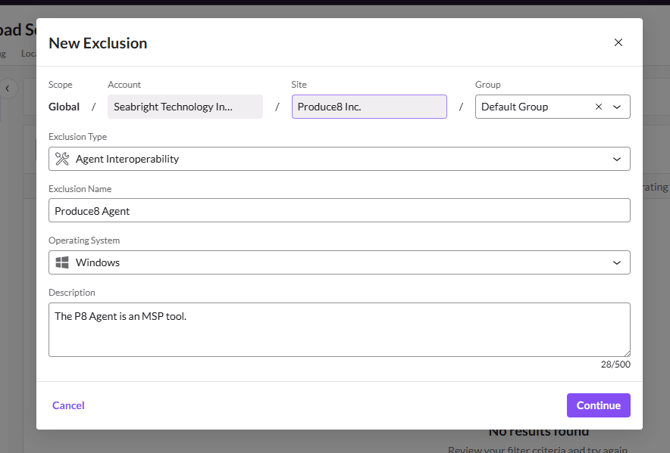
- Click Continue, then click the Edit icon on your new exclusion.
- Add the required file paths below. These exclusions ensure that the installer, updater, and agent processes can install, update, and collect data without interference.
Required Agent Paths
Add each of the following paths (multiple exclusion entries may be required depending on your policy setup):
"C:\Program Files\Produce8-Agent""C:\ProgramData\Produce8-Agent-Updater""C:\ProgramData\Produce8-Agent""C:\tmp" (Temporary installer directory for some systems)"C:\Windows\System32\config\systemprofile\AppData\Local\Produce8-Agent\Logs\P8-updater.log""C:\Users\$user\AppData\Roaming\Produce8-Agent""C:\Users\$user\AppData\Local\Produce8-Agent\Logs"
Copy/paste block (edit $user as needed):
⚠️ Note
All file paths listed in the exclusion examples must remain in quotation marks.
SentinelOne requires quotes for any path that includes spaces (e.g., C:\Program Files\...), and keeping quotes on all paths ensures consistent formatting and avoids parsing issues during policy creation.
"C:\Program Files\Produce8-Agent",
"C:\ProgramData\Produce8-Agent-Updater",
"C:\ProgramData\Produce8-Agent",
"C:\tmp",
"C:\Windows\System32\config\systemprofile\AppData\Local\Produce8-Agent\Logs\P8-updater.log",
"C:\Users\$user\AppData\Roaming\Produce8-Agent",
"C:\Users\$user\AppData\Local\Produce8-Agent\Logs"
Allow Network Access
- Go to Policy & Settings → Network Control and create a new rule.
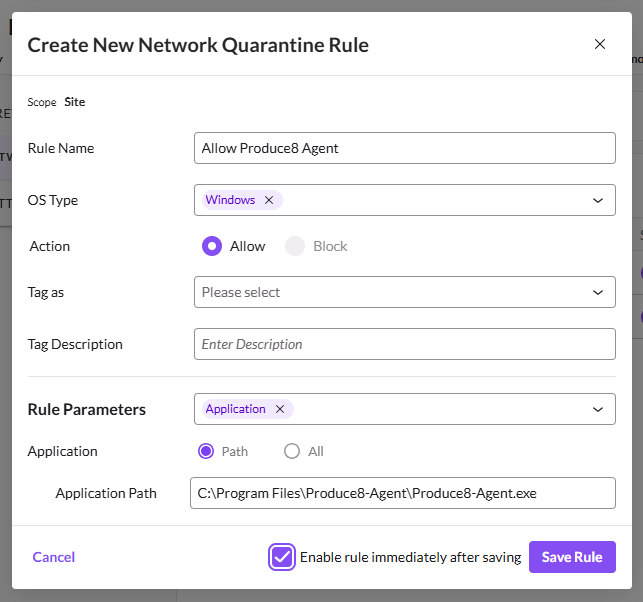
- Configure the rule:
- OS Type: Windows
- Action: Allow
- Rule Parameters: Application
- Application Path:
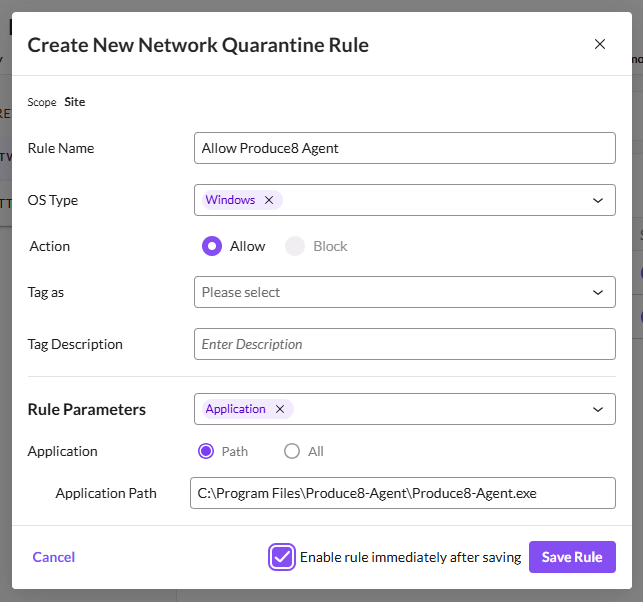
- Enable rule immediately →Save Rule
Produce8 Desktop App
The Desktop App does not collect additional data compared to the Agent. It is only needed for signing in locally or claiming anonymous profiles.
Set Up Exceptions
- In SentinelOne, go to Policy & Settings → Policy.
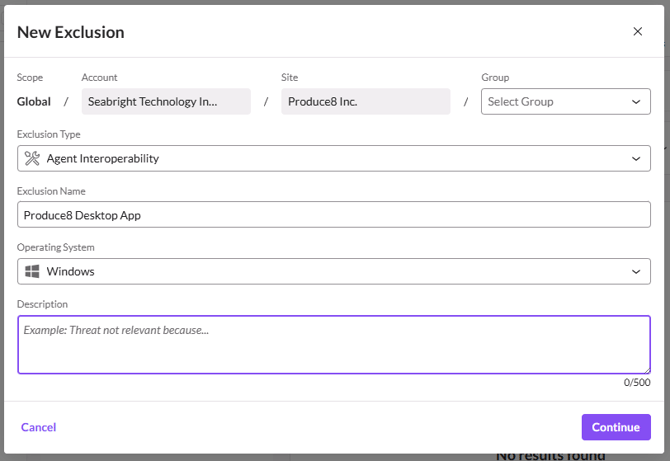
- Create a New Exclusion with:
- Exclusion Type: Agent Interoperability
- Exclusion Name: Produce8 Desktop App
- Operating System: Windows
Allow Network Access (Desktop App)
- Go to Policy & Settings → Network Control and create a new rule.
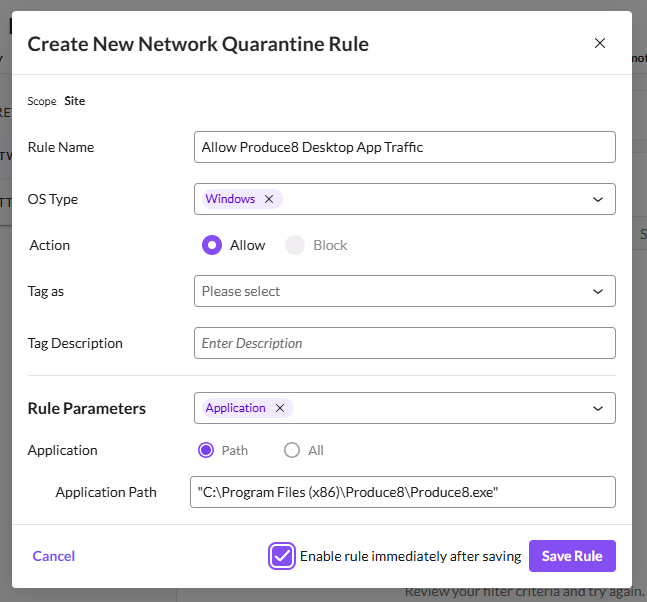
- Configure the rule:
- OS Type: Windows
- Action: Allow
- Rule Parameters: Application
- Application Path:
C:\Program Files (x86)\Produce8\Produce8.exe
- Enable rule immediately → Save Rule
Need Help?
If you experience issues with installation, updates, or data collection after configuring exclusions, contact our Customer Support team — we’re here to help.