![Produce8 logo - Colour white (L)@2x (1).png]](https://kb.produce8.com/hs-fs/hubfs/Produce8%20logo%20-%20Colour%20white%20(L)@2x%20(1).png?width=100&height=18&name=Produce8%20logo%20-%20Colour%20white%20(L)@2x%20(1).png)
This guide includes:
- General Policies
- Installing the Produce8 Agent
- Installing the Produce8 Desktop App
- Storage Control & Outbound Network Control
- Browser Plugin Rules (Edge / Chrome / Firefox)
General Policies
By default, ThreatLocker may show Produce8 and Produce8-Agent as built-in permitted applications.
⚠️ Why so many rules?
Produce8 uses multiple small components (installer, updater service, temporary files, local databases, browser extensions). ThreatLocker treats each as a separate application, so several policies must be allowed for the full ecosystem to run properly.
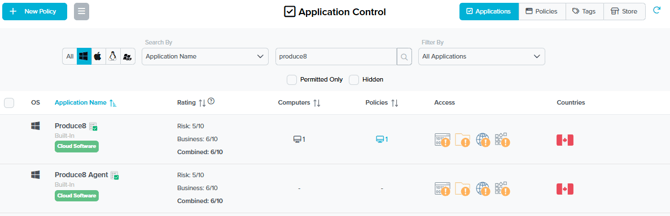
However, Produce8 uses multiple supporting components (installer, updater, temporary files, command-line utilities), so additional policies must be created if you experience:
- Installation failures
- Auto-update failures
- Agent not starting
Use the steps below to ensure all components are permitted.
Installing the Produce8 Agent
1. Application Policy File Rules
Create a new Application Policy and add the following allowed file rules:
Allowed File Rules
-
c:\windows\installer\*.msi -
C:\tmp\*.msi C:\programdata\produce8-agent-updater\produce8-agent-updater.exec:\\programdata\\produce8-agent-updater\\replace_updater.bat-
C:\program files\produce8-agent\assets\produce8-agent-updater.exe [cmd.exe /c "c:\program files\produce8-agent\assets\install_updater_service.bat" produce8-agent] c:\windows\system32\cmd.exec:\programdata\centrastage\packages\*\command.ps1 ["powershell" -executionpolicy bypass & '']c:\programdata\centrastage*\packages\*\command.ps1c:\windows\system32\windowspowershell\v1.0\powershell.exec:\program files\produce8-agent\*c:\users\$username\appdata\local\temp\jna--*\jna*.dllc:\users\$username\appdata\local\temp\sqlite-*-sqlitejdbc.dll
📌 Note:
$username must be replaced with the device’s actual logged-in user profile.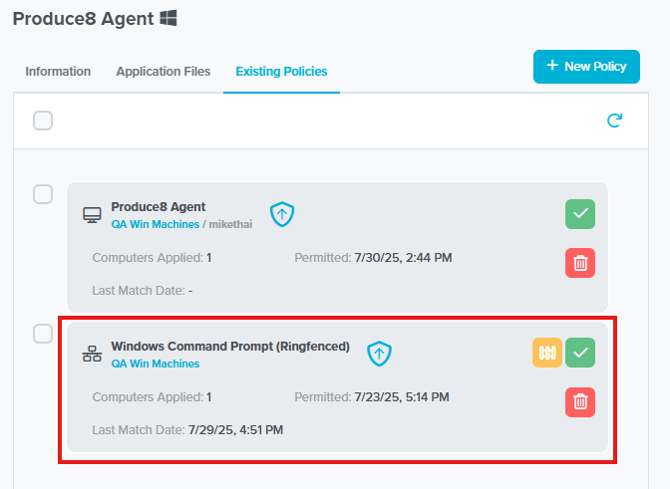
2. Add an Application Policy
Apply the Application Policy to:
- Windows Command Prompt (Ringfenced)
- The new Produce8 Agent policy you created
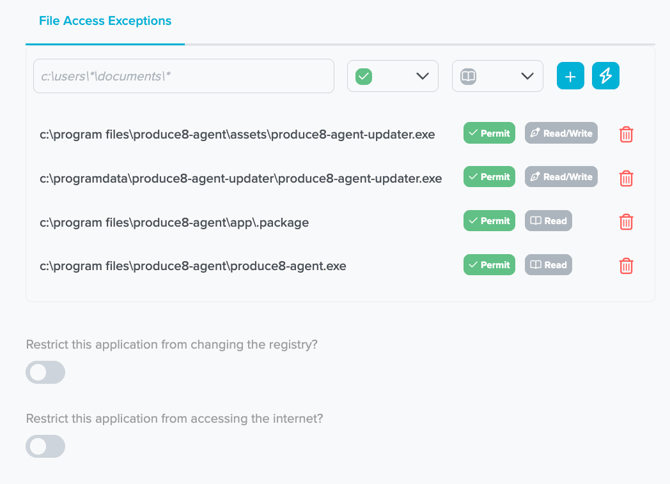
Required Read/Write File Access Exceptions
Add:
c:\program files\produce8-agent\assets\produce8-agent-updater.exec:\programdata\produce8-agent-updater\produce8-agent-updater.exec:\program files\produce8-agent\app\.packagec:\program files\produce8-agent\produce8-agent.exe
3. Storage Control Policy
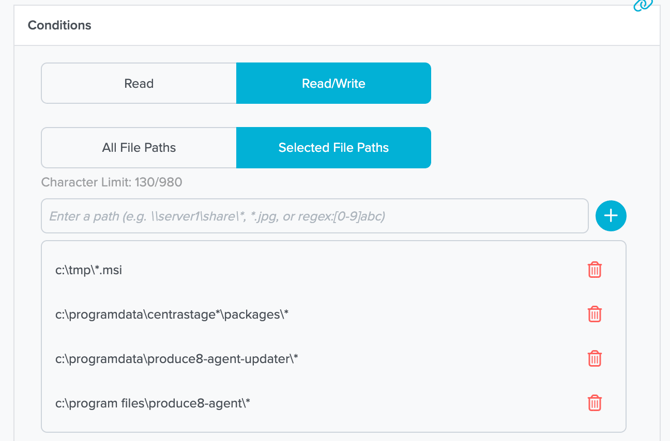
Create (or edit) a Storage Control Policy and permit Read/Write access for:
c:\windows\installer\*.msic:\program files (x86)\centrestage\*c:\programdata\centrestage\packages\*c:\tmp\*.msi (Win11)orc:\temp\*.msi (Win10)c:\program files\produce8-agent\*
4. Outbound Network Control Policy
Allow outbound traffic for:
C:\ProgramData\CentraStage\*C:\programdata\produce8-agent-updater\*
Installing the Produce8 Desktop App
If the Desktop App is deployed, additional rules are required.
1. Application Policy File Rules
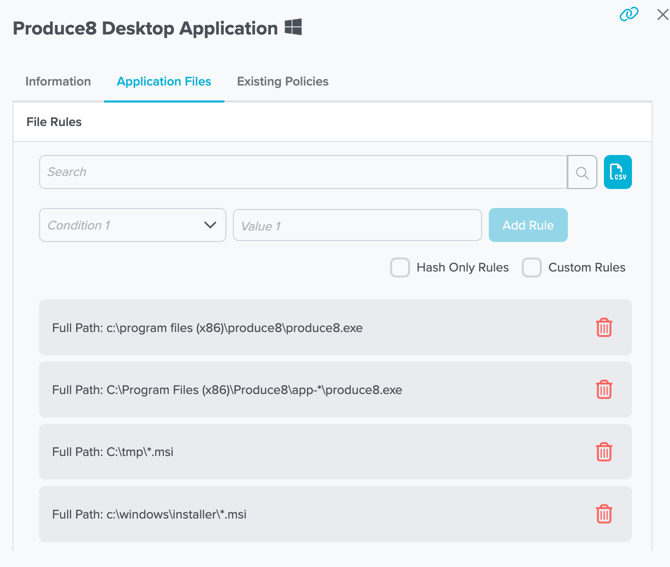
Create a new Application Policy for the Desktop App with these allowed file rules:
c:\windows\installer\*.msiC:\tmp\*.msiC:\Program Files (x86)\produce8\produce8.exeC:\Program Files (x86)\produce8\app-*\produce8.exeC:\Program Files (x86)\produce8\app-*\ffmpeg.dll(required for video playback)
2. Add an Application Policy
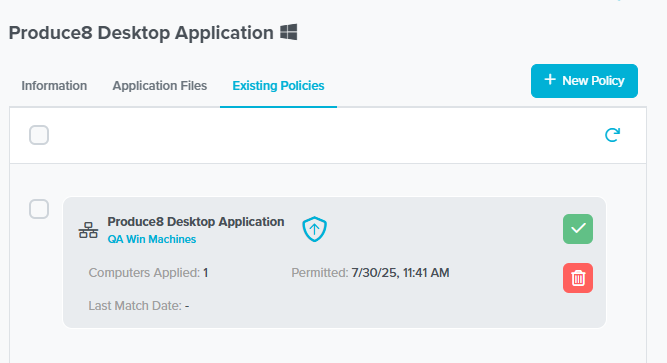
Apply the policy to:
- Windows App Powershell (Built-In)
- Your newly created Produce8 Desktop Application policy
3. Storage Control Policy (Desktop App)
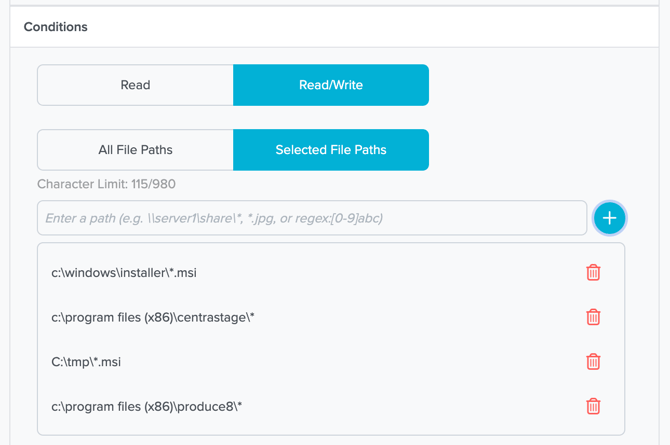
Add or update Storage Control to include:
c:\windows\installer\*.msic:\program files (x86)\centrestage\*c:\programdata\centrestage\packages\*c:\tmp\*.msi (Win11) or c:\temp\*.msi (Win10)c:\program files (x86)\produce8\*
Browser Plugin Rules
Produce8 browser extensions may require execution permissions depending on ThreatLocker configuration.
📌 Note: Browser extension folder names vary between devices. Use the existing extension rule as a template — ThreatLocker will auto-suggest matching paths on your machines.
Below are the default extension paths:
Edge
Action Type: Execute
C:\Users\$username\AppData\Local\Microsoft\Edge\User Data\Default\Extensions\cIfmhphegijgmbobgdeb…\
Chrome
Action Type: Execute
C:\Users\$username\AppData\Local\Google\Chrome\User Data\Default\Extensions\kjdnkfobigjlnanf...\
Firefox
Action Type: Execute
C:\Users\$username\AppData\Local\Mozilla\Firefox\Profiles\*.default\
Completed!
If all policies have been configured, your Produce8 environment will install, update, and operate normally with ThreatLocker.
- Installations will complete successfully
- Updates (including the updater service) will function
- The agent will be able to collect data normally
- The desktop app will launch and play videos
- Browser extensions will operate as intended