![Produce8 logo - Colour white (L)@2x (1).png]](https://kb.produce8.com/hs-fs/hubfs/Produce8%20logo%20-%20Colour%20white%20(L)@2x%20(1).png?width=100&height=18&name=Produce8%20logo%20-%20Colour%20white%20(L)@2x%20(1).png)
Overview
The User Summary, located within User Management, provides admins and owners with a centralized view of user-level data activity and agent status. It is designed to help you quickly verify that setup was successful, confirm data is flowing as expected, and spot issues without needing to rely on support.
This page is especially useful during deployment, after configuration changes, or when validating ongoing data collection across users and devices.
Why This Matters
The User Summary is designed to help you quickly understand the health of data collection across your account without digging through multiple pages.
It allows you to:
- Confirm that the Produce8 Desktop Agent is installed and running for each user
- Identify users who may be missing web or desktop activity
- Spot outdated agent versions that may require attention
- Validate that recent deployments or redeployments are working as expected
- Review data collection health across many endpoints, even in large or distributed environments
By bringing this information into a single, at-a-glance view, the User Summary reduces admin overhead and reliance on support while giving you confidence that your setup is functioning as intended.
It serves as both a deployment validation tool and an ongoing health check for user-level data collection across your account.
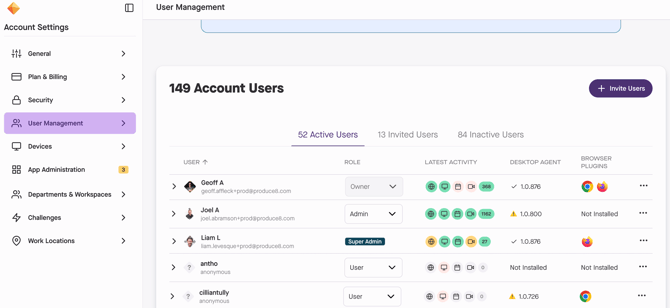
You can access the User Summary by navigating to:
Account Settings → User Management
How It Works
Within User Management, each active user includes a summary of their most recent activity across key data sources.
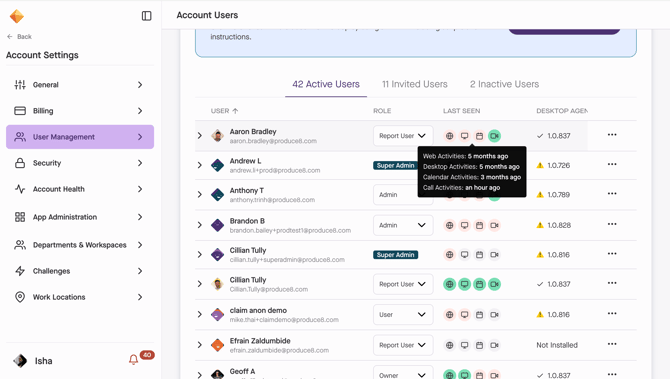
For each user, you’ll see:
1. Last Web Activity Received
Shows the most recent timestamp of captured web (browser) activity.
2. Last Desktop Activity Received
Indicates the most recent desktop activity event, confirming the Desktop Agent is running and collecting data.
3. Last Call Activity Received
Displays when call-related data (from supported communication tools) was last received.
4. Last Calendar Event Received
Shows the most recent successful calendar event sync.
5. Desktop Agent Version
Lists the installed Desktop Agent version for the user.
- A warning indicator appears if the agent is outdated.
6. Number of Activities in the Last 24 Hours
A quick snapshot of recent activity volume per user.
7. Browsers Installed
Shows which browsers are available on the user’s device for web activity collection.
Using the User Summary for Troubleshooting
The User Summary is often the fastest place to start when something doesn’t look right.
You can use it to:
- Identify users with missing desktop or web activity
- Confirm whether the Desktop Agent is installed and up to date
- Spot inactive or newly added users who haven’t completed setup
- Verify that redeployments or configuration changes took effect
If a user shows missing or stale data, you can then move on to targeted troubleshooting using the Desktop Agent Troubleshooting & FAQ or platform-specific guides.
Partner Access to Customer Accounts
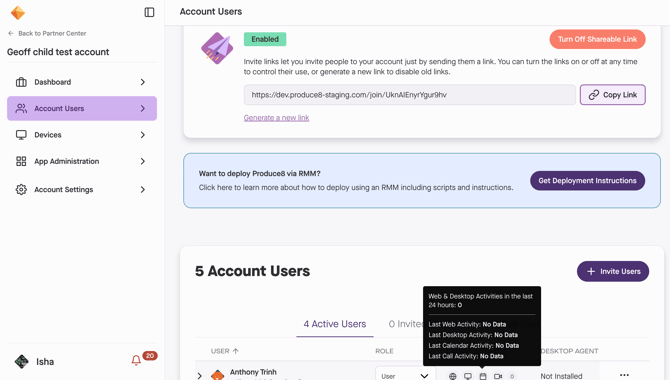
Produce8 partners can access customer accounts through the Partner Center, giving them visibility into deployment status, user setup, and account configuration without needing to rely on screenshots or manual confirmation.
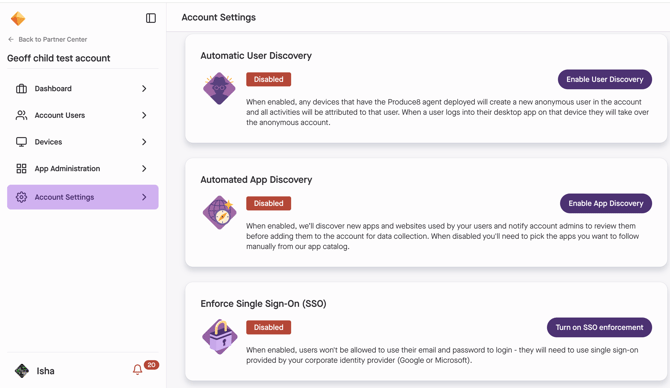
Once logged in to the Partner Center, partners can select a customer account and access the following areas: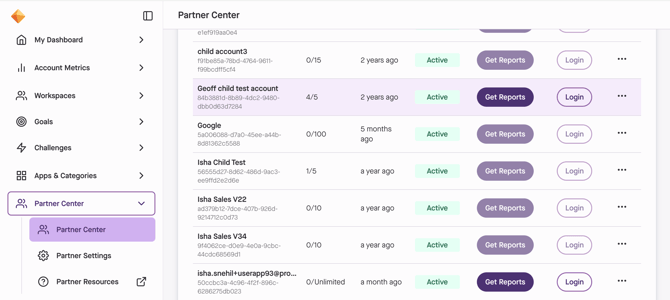
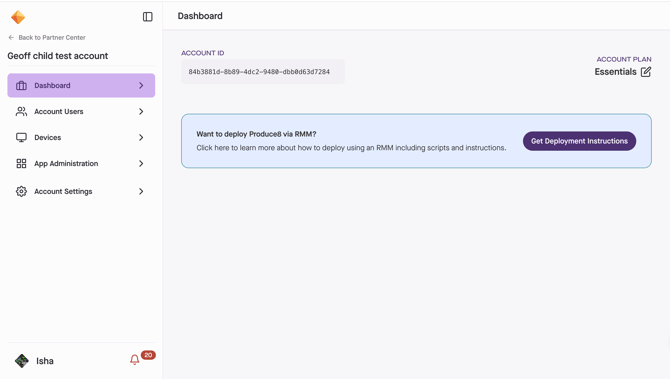
Available Sections
- Dashboard
View the customer’s account ID, plan details, and access deployment instructions for RMM-based setups. - Account Users
Review users in the account, invite new users, and view the User Summary to confirm desktop, web, calendar, and call activity per user. - Devices
See a list of deployed devices to help validate agent rollout and identify endpoints that may require attention. - App Administration
Review approved and ignored applications, and reclassify apps as needed to ensure accurate data collection. - Account Settings
Manage account-level configuration, including company details, timezone, and settings related to user discovery and app discovery.
This access allows partners to validate deployments, troubleshoot setup issues, and support customers more efficiently—without relying on screenshots, manual confirmation, or routine support involvement.