![Produce8 logo - Colour white (L)@2x (1).png]](https://kb.produce8.com/hs-fs/hubfs/Produce8%20logo%20-%20Colour%20white%20(L)@2x%20(1).png?width=100&height=18&name=Produce8%20logo%20-%20Colour%20white%20(L)@2x%20(1).png)
Overview
Windows Defender can interfere with Produce8 in several ways:
- Attack Surface Reduction (ASR) rules blocking executables
- Microsoft Defender Antivirus quarantining agent files
- Windows Firewall blocking network communication
- App not being included in the Allowed Apps list
This guide covers:
- Required Folder & File Exclusions
- Microsoft Defender Antivirus Exclusions & ASR Rules
- Troubleshooting With Windows Defender Firewall
- Adding Produce8-Agent to Allowed Apps
- Creating Firewall Inbound & Outbound Rules
- If Produce8-Agent Is Already Listed as Blocked
- Additional Tips & Troubleshooting
1. Required Folder & File Exclusions
Windows Defender may block the Agent, the Updater Service, or the Desktop App.
To ensure proper functionality, add allow/exclusion rules for the following folders and executables.
Required Exclusions
Add the following paths:
C:\Program Files\Produce8-Agent
C:\ProgramData\Produce8-Agent-Updater
C:\ProgramData\Produce8-Agent
C:\Program Files (x86)\Produce8     (optional – only if the desktop app is installed)
Tip: If your endpoint security policies allow it, adding an entire folder exclusion is often more reliable than adding individual executables.
2. Microsoft Defender Antivirus Exclusions & ASR Rules
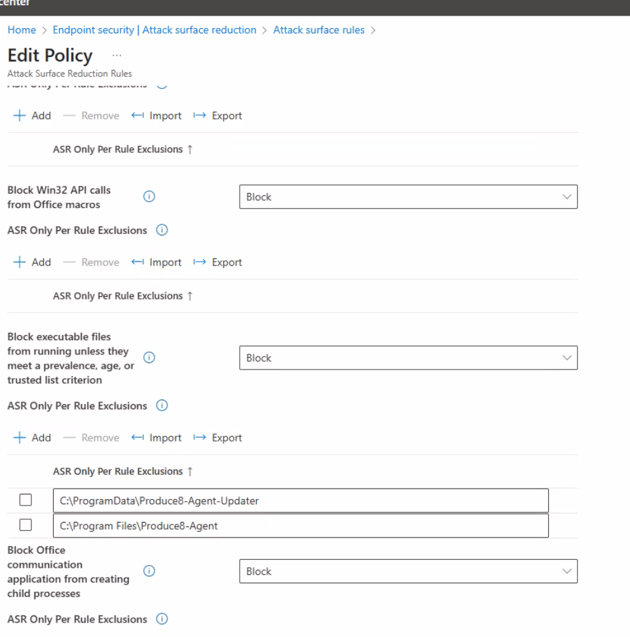
ASR rules are a common cause of blocked executable files. If these rules are enabled in your environment, exclusions must be added for the Produce8 Agent and Updater.
2.1 Required Folders for ASR Exclusions
Allow the following folders (same list as above):
C:\Program Files\Produce8-Agent
C:\ProgramData\Produce8-Agent-Updater
C:\ProgramData\Produce8-Agent
C:\Program Files (x86)\Produce8     (optional – only if the desktop app is installed)
2.2 Confirm ASR Rule Settings
If ASR rules are blocking execution, you may see entries similar to:
“Block executable files from running unless they meet a prevalence, age, or trusted list criteria.”
To resolve this:
- Open Microsoft Defender Security Center
- Navigate to:
Endpoint security → Attack Surface Reduction → Attack surface rules - For each relevant rule, add the Produce8 folders under
ASR Only Per Rule Exclusions - Ensure exclusions are applied to both the Agent and Updater folders.
3. Troubleshooting With Windows Defender Firewall
If the Produce8 Agent cannot communicate, Windows Firewall may be blocking the connection.
Follow the steps below to confirm the Agent is allowed through the firewall.
3.1 Check Allowed Apps List
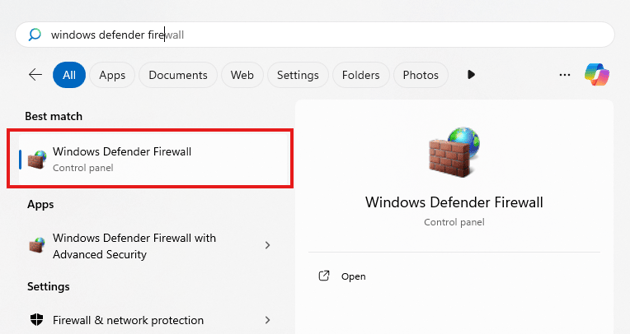
- Open the Start menu and type Windows Defender Firewall
- Select Windows Defender Firewall
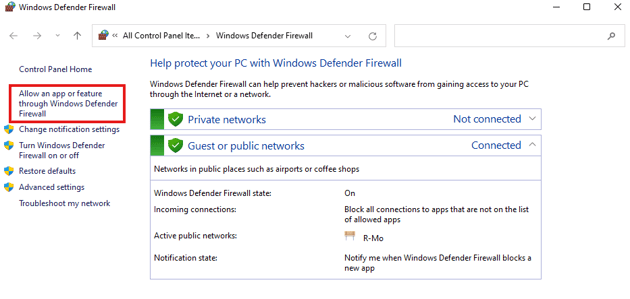
- Select Allow an app or feature through Windows Defender Firewall
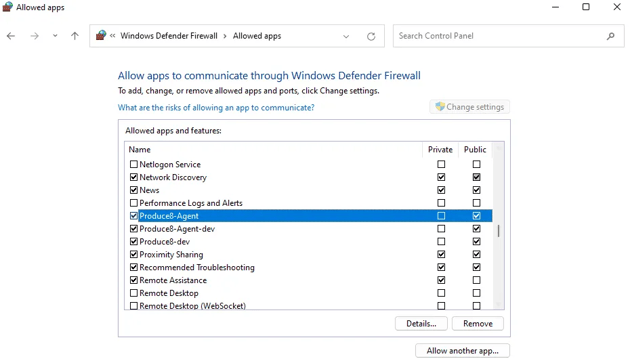
- Scroll to find Produce8-Agent
- Ensure both Private and Public checkboxes are enabled
4. Add Produce8-Agent to Allowed Apps (If Missing)
If Produce8-Agent does not appear on the Allowed Apps list:
- Return to the Allowed apps window
- Click Change Settings (if required)
- Click Allow another app…
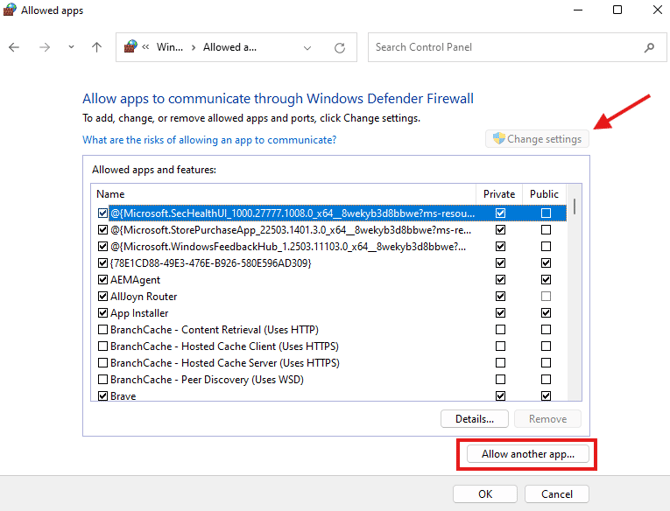
- Navigate to:
C:\Program Files\Produce8-Agent\
- Select Produce8-Agent.exe
- Click Add
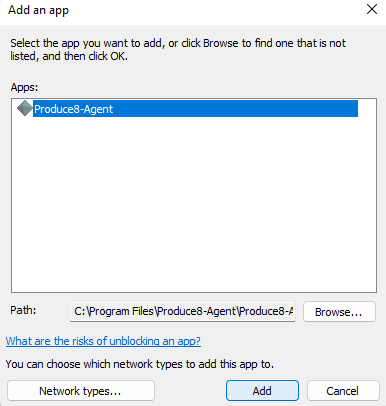
- Ensure both Private and Public checkboxes are enabled
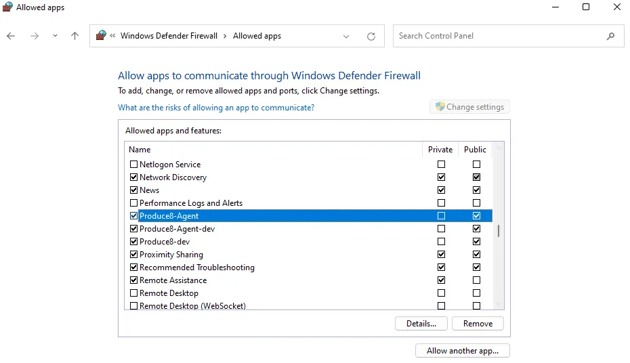
- Click OK
5. Adding Firewall Inbound and Outbound Rules
Note: Most deployments will work after adding the folder exclusions and Allowed Apps entries. Inbound and outbound firewall rules are only required in environments with strict firewall policies.
5.1 Add Inbound Rule
- Open Start → type Windows Defender Firewall
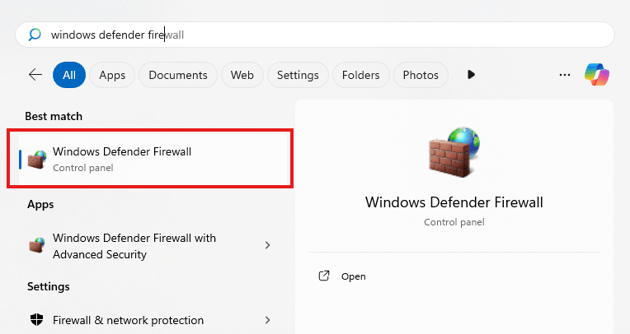
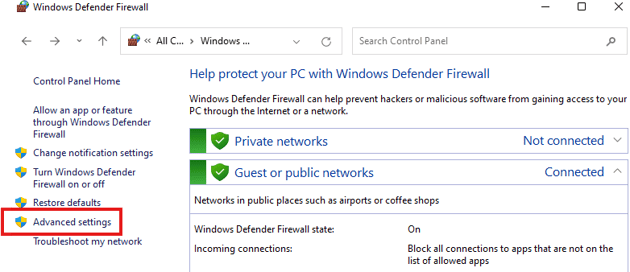
- Click Advanced settings
- Select Inbound Rules
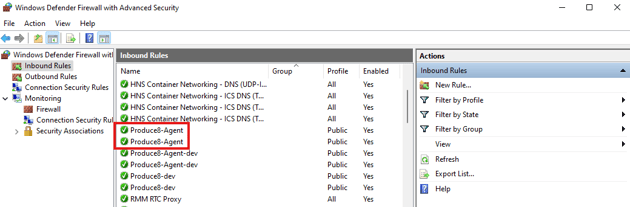
- If Produce8-Agent is not already listed:
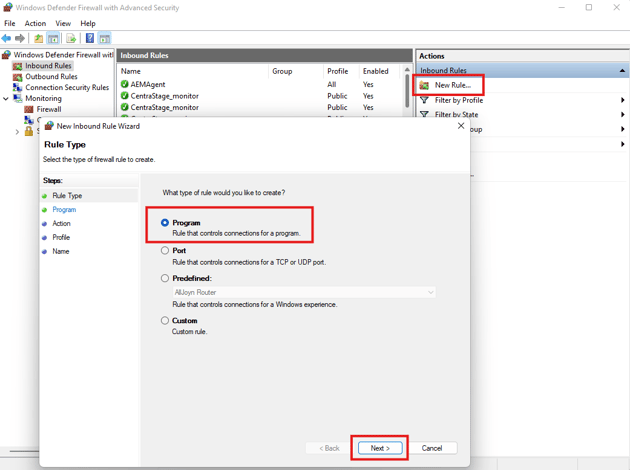
- Click New Rule…
- Choose Program → Next
- Browse to:
C:\Program Files\Produce8-Agent\Produce8-Agent.exe
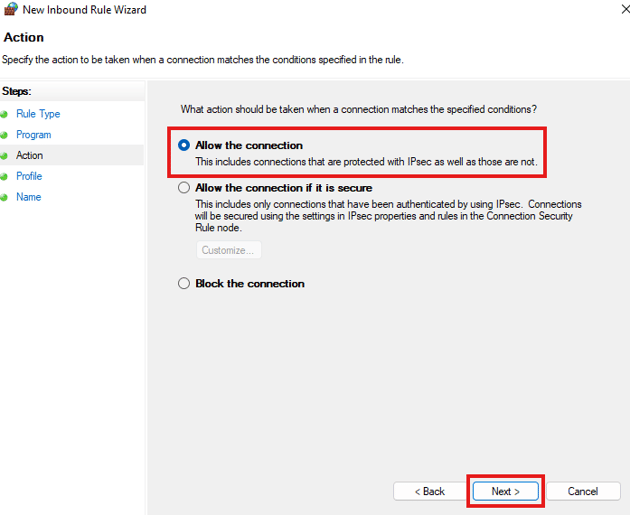
- Select Allow the connection → Next
- Check Domain, Private, Public → Next
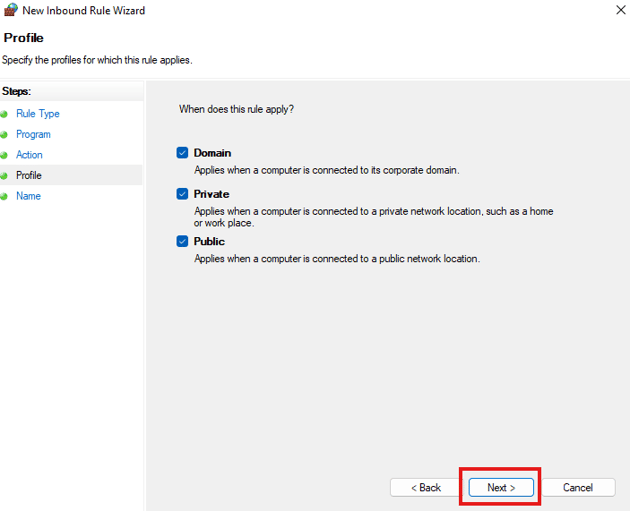
- Name: Produce8-Agent
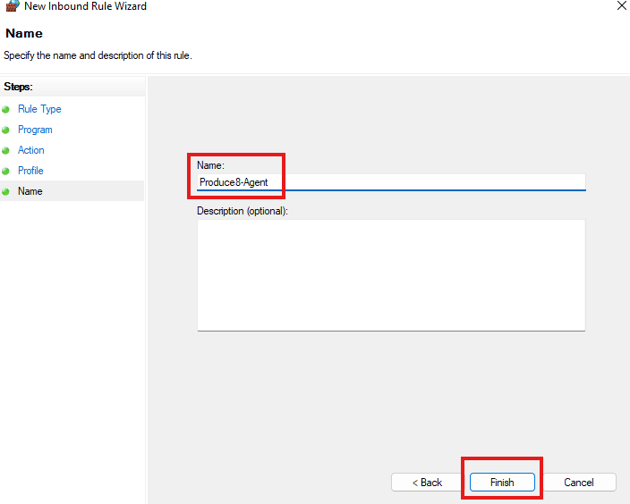
- Click Finish
- Confirm the rule appears with a green checkmark.
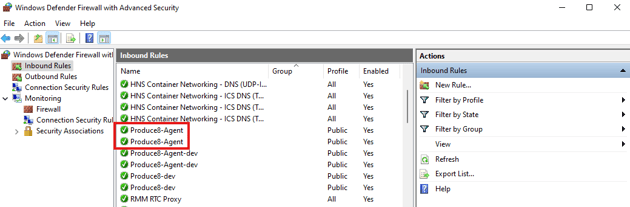
5.2 Add Outbound Rule
Repeat the same steps under Outbound Rules.
6. If Produce8-Agent Is Already Listed as BLOCKED
Windows Firewall may have automatically added the Agent as a Blocked Rule.
6.1 Fixing a Blocked Rule
- Open Outbound Rules
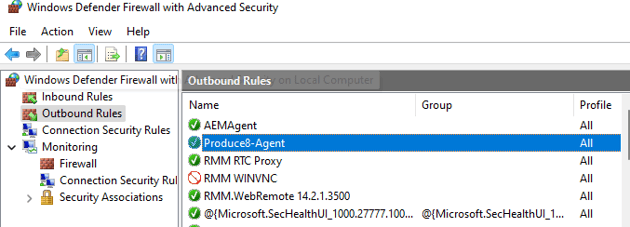
- Find Produce8-Agent with a blocked/red icon
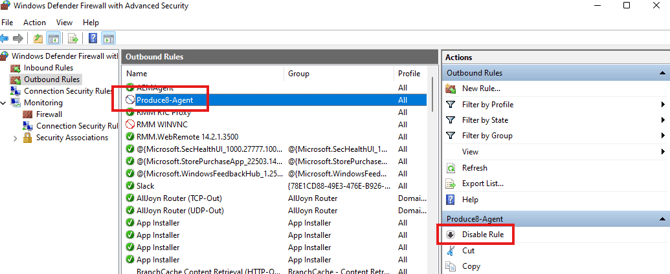
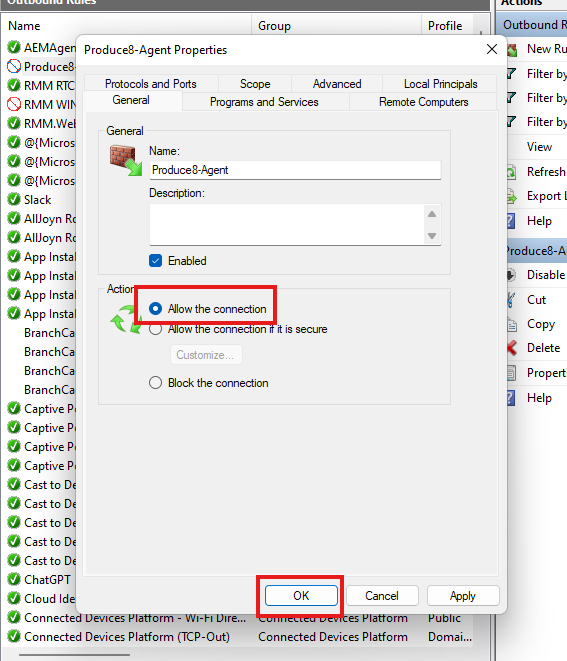
- Double-click the rule
- Under Action, choose Allow the connection
- Click OK
- Confirm the rule status updates to Allowed
7. Additional Tips & Troubleshooting
If you still see ASR or firewall blocks:
- Reboot after adding exclusions
- Ensure no third-party AV/EDR is overriding Defender
- Confirm Updater service is allowed
- Ensure policies are not overridden by Intune / Azure AD
If Produce8 data is still not flowing:
- Restart the Produce8 Agent service
- Restart the machine
- Confirm HTTPS communication is not blocked by DNS filtering
8. Need Further Assistance?
If you encounter issues after completing the steps in this guide, please contact Produce8 Support with:
- Device OS version
- Defender logs / ASR entries
- Firewall rule screenshots
- Produce8 Agent logs (if needed)
We’re here to help ensure smooth deployment.