![Produce8 logo - Colour white (L)@2x (1).png]](https://kb.produce8.com/hs-fs/hubfs/Produce8%20logo%20-%20Colour%20white%20(L)@2x%20(1).png?width=100&height=18&name=Produce8%20logo%20-%20Colour%20white%20(L)@2x%20(1).png)
When is this required?
You should complete these steps if:
- The macOS firewall is enabled
- The Produce8 Agent appears installed but is not reporting data
- Agent connectivity issues persist despite successful installation
macOS Default Firewall – Allow Incoming Connections
1. Open Firewall Settings
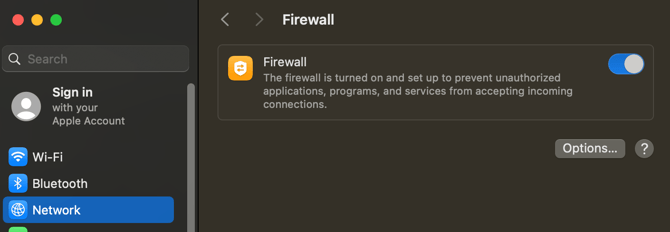
- Open System Settings
- Navigate to Network → Firewall
- Ensure the firewall is turned On
- Click Options…
2. Add the Produce8 Agent
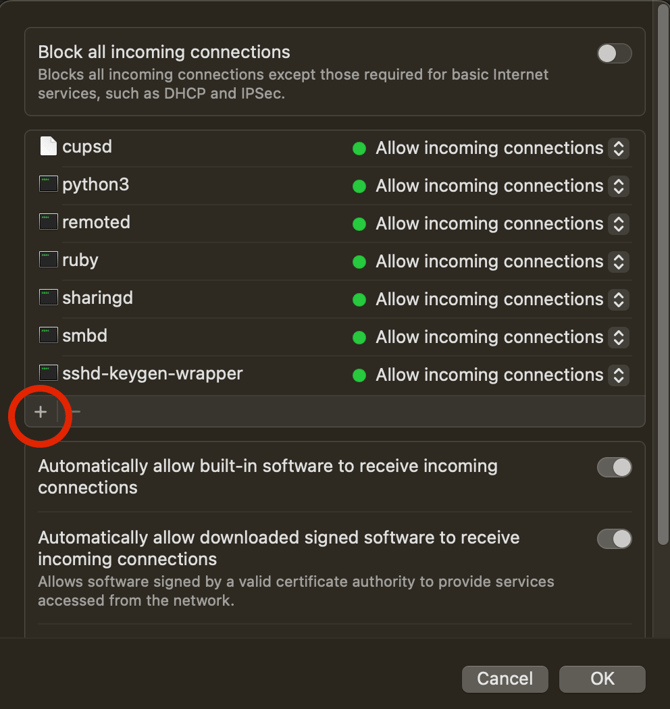
- In the Firewall Options window, click the + button
- Navigate to the Applications folder
- Select Produce8-Agent
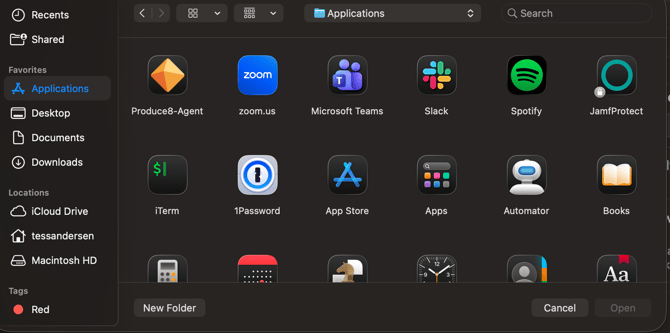
- Click Open
3. Allow Incoming Connections
- Locate Produce8-Agent in the list
- Ensure the setting is Allow incoming connections
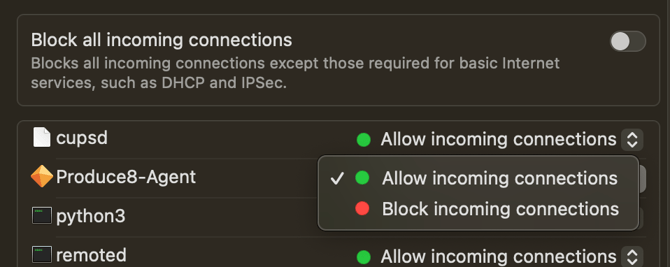
- Click OK to save changes
4. Confirm Configuration
Once added:
- Produce8-Agent should appear in the firewall allow list
- The status should show Allow incoming connections
- No restart is required, but restarting the Agent may help if issues persist
Notes & Best Practices
- This applies only to the macOS default firewall
- Third-party firewall or endpoint protection tools may require separate rules
- Admin privileges are required to modify firewall settings
- This step is typically not required unless firewall restrictions are enabled
Related Articles
→ Security & Endpoint Protection
→ Desktop Agent Troubleshooting & FAQ