![Produce8 logo - Colour white (L)@2x (1).png]](https://kb.produce8.com/hs-fs/hubfs/Produce8%20logo%20-%20Colour%20white%20(L)@2x%20(1).png?width=100&height=18&name=Produce8%20logo%20-%20Colour%20white%20(L)@2x%20(1).png)
The recommended deployment approach is:
- Deploy the Desktop Agent and Browser Extensions via RMM
- Allow data to collect automatically for Anonymous Users
- Have users sign in via the Produce8 Desktop App to become Engaged Users
Overview
Produce8 deployment consists of three core components:
- Desktop Agent – collects desktop activity and enables background data collection
- Browser Extensions – collect browser-based activity
- Desktop App – allows users to sign in, claim their profile, and access insights
Admins deploy the Agent and Extensions.
Users sign in through the Desktop App.
⚠️ Endpoint Protection Reminder
Antivirus and endpoint security tools may block installation or interfere with required folders.
We recommend reviewing:
→ Antivirus/Endpoint Protection Blocking the Produce8 Agent
1. Deploy the Produce8 Desktop Agent (Required)
The Produce8 Desktop Agent is the core component responsible for collecting desktop activity data.
The Agent can be deployed using:
- PowerShell script (Windows)
- Bash script (macOS)
You can find step-by-step instructions for locating the deployment scripts in the Produce8 web app here:
→ How to Find Deployment Scripts in Produce8
You can also access all deployment scripts directly from our GitHub repository.
⚠️ Important
Some RMM tools require the Account ID to be hardcoded in the script. Review the script notes carefully and adjust as needed unless your RMM supports custom variables.
Relevant Articles
→ Produce8 Download Links (Desktop Agent, Desktop App & Browser Extensions)
Guides for Common RMM Platforms
2. Deploy Browser Extensions (Required)
Browser extensions are required to capture web-based activity.
Supported browsers:
Extensions can be deployed via:
- PowerShell scripts
- Bash scripts
- RMM deployment jobs
- Direct installation via browser extension stores
You can find step-by-step instructions for locating the extension scripts in the Produce8 web app here:
→ How to Find Deployment Scripts in Produce8
You can also access all extension scripts directly from our GitHub repository.
⚠️ Important
Browser extensions require a full browser restart to begin sending activity.
Close all tabs for the target browser, ensure the browser quits fully, then reopen it.
You will know the extension is active when the Produce8 logo appears in the browser’s extension tray.

Relevant Articles
→ Produce8 Download Links (Desktop Agent, Desktop App & Browser Extensions)
3. Desktop App (Optional — Required for Engaged Users)
The Produce8 Desktop App is optional during initial deployment, but required for users who will sign in.
Install the Desktop App when:
- Users will sign in to Produce8 directly
- Users need to claim their existing Anonymous User profile
Installation can be completed using PowerShell or Bash scripts.
You can find step-by-step instructions for locating the extension scripts in the Produce8 web app here:
→ How to Find Deployment Scripts in Produce8
Alternatively, you can use the Install-Produce8-App script available in our GitHub repository.
Relevant Articles
→ Produce8 Download Links (Desktop Agent, Desktop App & Browser Extensions)
4. Anonymous vs Engaged Users
Produce8 supports two user states during deployment.
Anonymous Users
- Created when the Desktop Agent and Browser Extensions are deployed via RMM
- Begin collecting data immediately
- Appear in the account without a name or email
- Are expected during the initial rollout
Engaged Users
- Created when a user signs in through the Produce8 Desktop App
- Automatically claim their existing Anonymous profile
- Appear in User Management with their name and email
- Can access personal insights and configure integrations (calendar, calls, etc.)
✅ Anonymous → Engaged conversion is automatic
No admin action is required once the user signs in correctly through the Desktop App.
5. Converting Users to Engaged Users
Once the Desktop Agent and Browser Extensions are deployed:- Deploy the Produce8 Desktop App to user devices
- Instruct users to:
- Open the Desktop App
- Sign in using SSO or email/password
- Produce8 will automatically:
- Claim the existing Anonymous profile
- Link the user to their device
- Begin reporting Engaged User data
⚠️ Users should sign in for the first time through the Desktop App.
See:
→ How to Claim an Anonymous User
6. Verifying Deployment & Data Flow
Activity may take a short period to appear after initial deployment.
Admins can verify deployment success in the following areas:
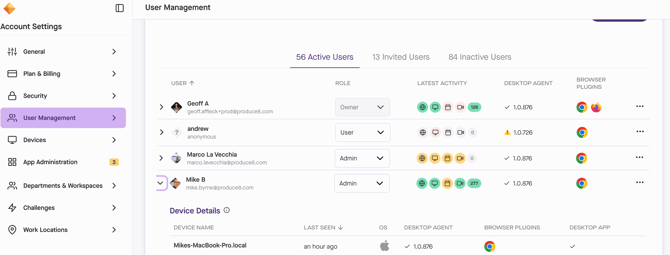
User Management
Go to: Account Settings → User Management
You should see:
- Anonymous users (before sign-in)
- Named users (after Desktop App sign-in)
- Last activity timestamps
- Agent and extension status
- Calendar and calling integration status (if configured by the user)
Devices Page
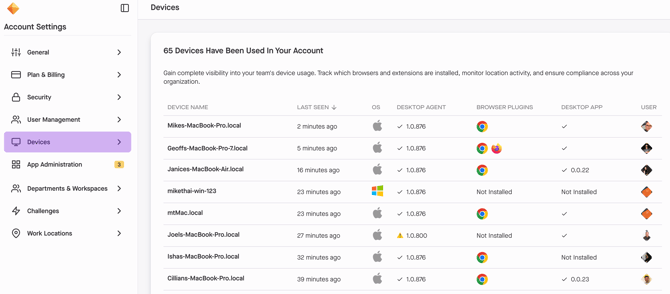
Go to: Account Settings → Devices
You can confirm:
- Desktop Agent installation
- Browser extension status
- Desktop App presence
- Which user (anonymous or engaged) is associated with each device
7. Next Steps / Completion
Once the Agent, Browser Extensions, and (optional) Desktop App are deployed, devices and users will begin reporting data automatically in Produce8. Full insights typically appear within 1—3 hours.
8. Troubleshooting & FAQ
For common deployment issues, see:
→ Desktop Agent Troubleshooting & FAQ
This includes
- Agent not running
- Browser Extension Issues
- Desktop App sign-in
- AV/EDR conflicts
If issues persist, collect:
- Device OS
- Agent logs
- Screenshots of User Management and Devices pages
Then contact Produce8 Support.
Related Articles
→ How to Claim an Anonymous User
→ How to Find Deployment Scripts in Produce8